
Defining Custom Apps in Liferay Control Panel
A technical guide covering all scenarios for adding custom applications to the Liferay Control Panel: custom categories, adding Java Portlets and Client extensions to control panel categories and root-level categories with Objects integration.
Introduction
This article is aimed at developers who need to add custom applications to the Liferay Control Panel. The knowledge on this topic is currently spread across various blog posts (on various blog websites), and some scenarios are not documented at all. Here, I consolidate all the cases related to defining custom Control Panel apps in one place.
We'll cover four scenarios:
- Custom category under an existing Control Panel category
- Custom Portlet under an existing or custom panel category
- Custom React Client Extension under a panel category
- Completely custom "root" category (including making it work with Objects configuration)
The reason why I decided to write this article is that, even though I use custom panel categories quite often, I stumbled on the last point: how to create custom root category with custom categories and make them visible in objects definitions configuration. Sadly I could not find documentation, nor answer in Google so I had to look in the Liferay code. To save you the time I'll now describe that.
Please note the same concept applies for categories in left sidebar, not only the "top" menu.
Prerequisites
This guide assumes you have experience with Liferay module development and basic understanding of OSGi. The code has been tested with Liferay 7.4.
1. Custom Category Under Existing Control Panel Category
The first scenario is when you want to add a subcategory under an existing "root" category (for example "Applications" or "Control Panel").
In order to do that you need to implement the PanelCategory or extend the BasePanelCategory class (which is more convenient and I'd recommend that):
@Component(
        property = {
                "panel.category.key=" + PanelCategoryKeys.CONTROL_PANEL,
                "panel.category.order:Integer=100"
        },
        service = PanelCategory.class
)
public class InnRayCustomAppsPanelCategory extends BasePanelCategory {
    @Override
    public String getKey() {
        return PanelCategoryKeys.CONTROL_PANEL + ".innray";
    }

    @Override
    public String getLabel(Locale locale) {
        return "InnRay";
    }

    @Override
    public boolean isShow(PermissionChecker permissionChecker, Group group)
            throws PortalException {
        return super.isShow(permissionChecker, group);
    }
}
The panel.category.key property defines parent category where this category appears.
For existing Control Panel categories, you can use keys defined in PanelCategoryKeys.class. For example:
PanelCategoryKeys.CONTROL_PANEL- directly under Control PanelPanelCategoryKeys.APPLICATIONS_MENU_APPLICATIONS- under Applications
Please note that with panel.category.order:Integer you can define the order of categories in the Control Panel.
2. Custom App Under Panel Category
Once you have a category (existing or custom), you can add your custom Portlet to it using PanelApp interface or BasePanelApp class:
@Component(
        property = {
                "panel.app.order:Integer=100",
                "panel.category.key=" + PanelCategoryKeys.CONTROL_PANEL + ".innray"
        },
        service = PanelApp.class
)
public class MyCustomPanelApp extends BasePanelApp {
    @Override
    public String getPortletId() {
        return InnRayPortletKeys.INNRAY_CUSTOM_PORTLET;
    }

    @Override
    public Portlet getPortlet() {
        return _portlet;
    }

    @Reference(
            target = "(javax.portlet.name=" + InnRayPortletKeys.INNRAY_CUSTOM_PORTLET + ")"
    )
    private Portlet _portlet;
}
The panel.category.key property defines the category where this app appears.
Just like with categories, you can also define the order of apps in the category using panel.app.order:Integer.
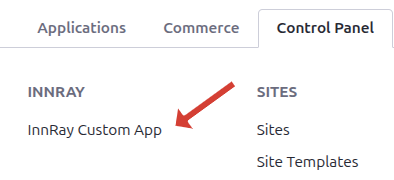
Once we combine our custom category and custom panel app we get our entry as expected:
Make sure to make your portlet not instanceable. Otherwise it might not work as expected:
@Component(
    property = {
        "com.liferay.portlet.display-category=category.hidden",
        "com.liferay.portlet.instanceable=false",
        "javax.portlet.display-name=My Custom App",
        "javax.portlet.name=" + InnRayPortletKeys.INNRAY_CUSTOM_PORTLET,
        "javax.portlet.security-role-ref=administrator"
    },
    service = Portlet.class
)
public class MyCustomPortlet extends MVCPortlet {
    // Portlet implementation
}
3. React Client Extension in Control Panel
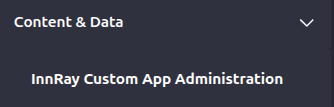
The third case is when you want to create a Client Extension which would appear in control panel or left sidebar. This is also possible for both custom or existing categories. The key is to have a proper client-extension.yaml configuration. In this case I will add something under existing "Content & Data" (left sidebar) panel category. To do that you need to define these properties:
- panelCategoryKey: category where we want to put our custom client extension
- panelAppOrder: order, just like for custom panel apps
- instanceable: has to be false
innRayCustomAppAdmin:
  panelCategoryKey: site_administration.content
  panelAppOrder: 660
  instanceable: false
  type: customElement
  name: InnRay Custom App Administration
  portletCategoryName: category.client-extensions
  htmlElementName: innray-custom-app-admin
  friendlyURLMapping: innray-custom-app-admin
  useESM: true
  urls:
    - assets/*.js
  cssURLs:
    - assets/*.css
Effect:
4. Custom Root Category
Creating a completely custom root-level category (like "Applications" or "Control Panel" themselves) is slightly more complex and less documented.
First of all you need to create a "root category" which is done in the same way as for custom categories,
the only difference is that you need to put correct panel.category.key property:
@Component(
        property = {
                "panel.category.key=" + PanelCategoryKeys.APPLICATIONS_MENU,
                "panel.category.order:Integer=900"
        },
        service = PanelCategory.class
)
public class InnRayRootPanelCategory extends BasePanelCategory {

    @Override
    public String getKey() {
        return PanelCategoryKeys.APPLICATIONS_MENU + ".innray";
    }

    @Override
    public String getLabel(Locale locale) {
        return "InnRay";
    }
}
There you need to make sure to have at least one category with at least one custom app (for example as explained in previous sections). Otherwise the root category won't be visible.
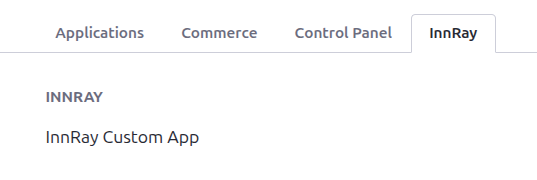
Once you do that you should see your custom root category in the Control Panel:
Making Root Category Work with Objects
One challenge with custom root categories is making them appear in the Objects configuration panel (when you want to assign an Object to your custom category) - by default, Objects configuration only shows the built-in categories. Creating custom "root level" category won't show them there by default. To make your custom category appear there, you need to:
- Provide custom implementation of
ObjectScopeProvider - In the
getRootPanelCategoryKeysmethod return your custom category key (in addition to the built-in ones) - The base implementation of
ObjectScopeProvidercan be found in Liferay Source Code.
Please note that these configurations have different scopes like company or site scope. I'll show the example for company scope, the rest are very similar and as I mentioned earlier: you can find the default implementations in Liferay's GitHub.
So the implementation should look like this:
@Component(
        immediate = true,
        property = {
                "object.scope.provider.key=" + ObjectDefinitionConstants.SCOPE_COMPANY,
                "service.ranking:Integer=" + Integer.MAX_VALUE
        },
        service = ObjectScopeProvider.class
)
public class InnRayCompanyInstanceObjectScopeProviderImpl implements ObjectScopeProvider {

    @Reference
    private Language language;

    @Override
    public long getGroupId(HttpServletRequest httpServletRequest) {
        return 0;
    }

    @Override
    public String getKey() {
        return ObjectDefinitionConstants.SCOPE_COMPANY;
    }

    @Override
    public String getLabel(Locale locale) {
        return language.get(locale, "company");
    }

    @Override
    public String[] getRootPanelCategoryKeys() {
        return new String[]{
                PanelCategoryKeys.CONTROL_PANEL, PanelCategoryKeys.COMMERCE,
                PanelCategoryKeys.APPLICATIONS_MENU_APPLICATIONS, PanelCategoryKeys.APPLICATIONS_MENU + ".innray"
        };
    }

    @Override
    public boolean isGroupAware() {
        return false;
    }

    @Override
    public boolean isValidGroupId(long groupId) {
        if (groupId == 0) {
            return true;
        }

        return false;
    }
}
Make sure to define service.ranking:Integer so the default Liferay configuration is overwritten with yours.
That's it! Your custom configurations in your own "root category" should appear in Objects configuration:
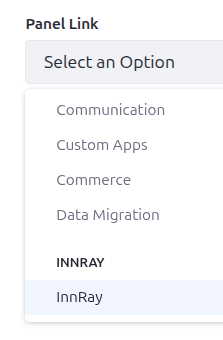
The question you might have: why it works for custom categories we create which under existing root categories? Well, it's because from the ObjectScopeProviderImpl the root categories are taken but then the Liferay code figures out the subcategories on its own. So once you have a root category defined, all subcategories will be visible without any additional configuration.
Conclusion
This article covered the main scenarios for adding custom applications to the Liferay Control Panel. While the first three scenarios are relatively straightforward and already explained somewhere (although not in one place as far as I can tell), creating root-level categories that integrate with Objects requires additional configuration.
The key takeaways:
- Create OSGi component extending
BasePanelCategoryfor custom categories andBasePanelAppfor applications - Reference correct parent category keys
- Client Extensions can be integrated with client-extension.yaml configuration
- Root categories need special handling for Objects integration